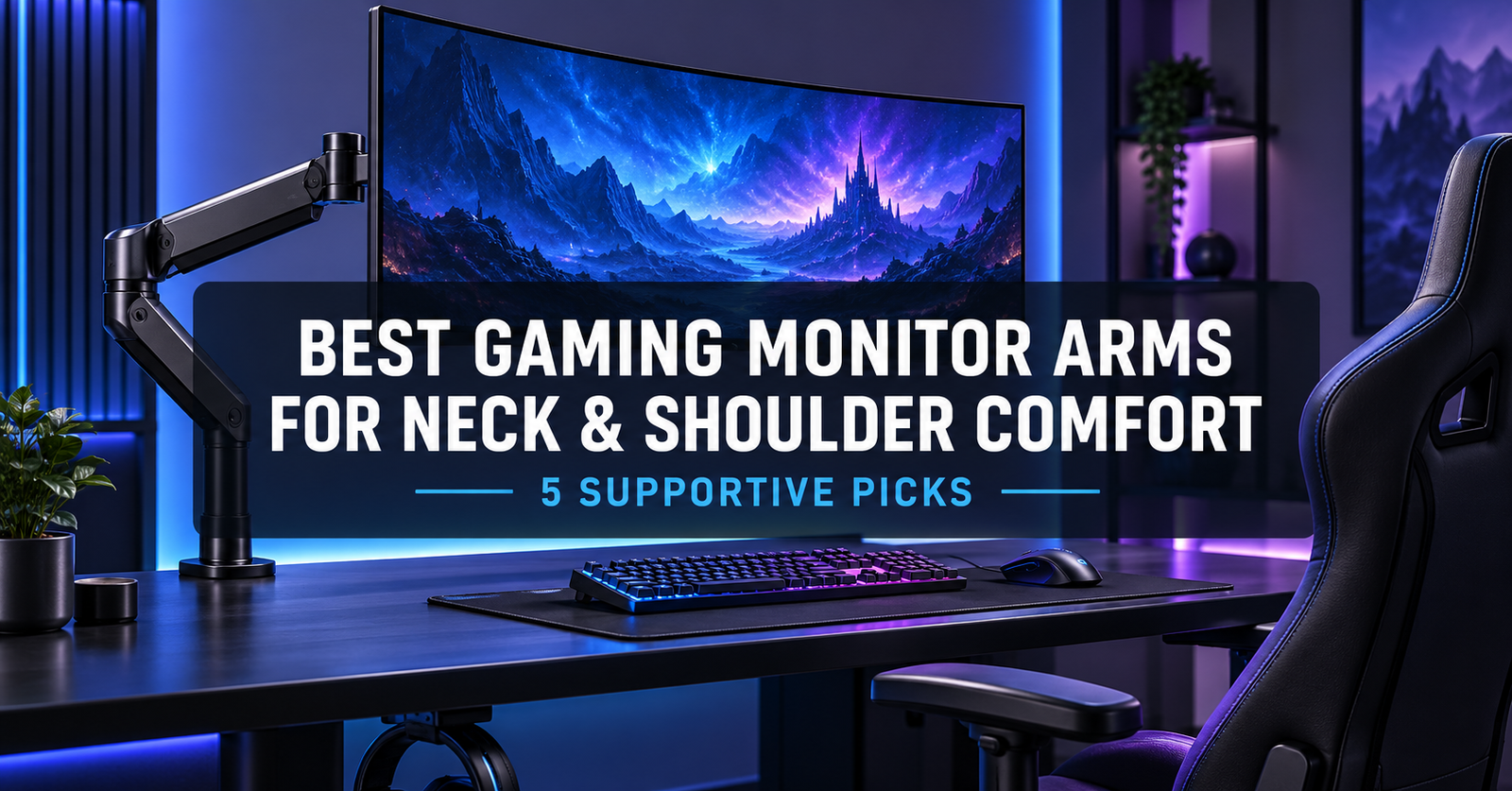
Long gaming sessions can become uncomfortable when a monitor sits too low, too far away, or off to one side. A suitable monitor arm lets you bring the screen closer, raise it toward eye level, and center it with your seating position. It can also free valuable desk space for a larger mouse pad, keyboard, speakers, or streaming equipment.
A monitor arm is not a treatment for neck or shoulder pain, and it cannot correct every desk or seating problem. However, it can make screen placement much easier to adjust than a fixed monitor stand. The right choice depends on more than screen size: monitor weight, VESA pattern, desk construction, arm reach, and mounting method all matter.
We selected five reliable options for common gaming setups, from a single 27-inch display to a large curved ultrawide or two-monitor battlestation.
Quick Comparison
Table of Contents
| Monitor arm | Best for | Published screen compatibility | Published weight capacity | Mounting options |
|---|---|---|---|---|
| Ergotron LX Desk Monitor Arm | Best overall | Varies by current model/SKU | Check the exact model before buying | Desk clamp or grommet |
| Secretlab MAGNUS Heavy Duty Monitor Arm | Heavy ultrawide monitors | 34–57 inches | 17.6–35.2 lb | C-clamp |
| HUANUO DS7 Dual Monitor Arm | Dual gaming monitors | 13–40 inches per arm | 4.4–26.4 lb per arm | C-clamp or grommet |
| VIVO STAND-V101V | Best-value ultrawide option | 17–49 inches | 4.4–44 lb | C-clamp or grommet |
| Amazon Basics Adjustable Single Monitor Arm | Budget gaming setups | Up to 32 inches or 38-inch ultrawide | Up to 22 lb | Desk mount |
Specifications can change between versions and regional listings. Confirm the exact model number, monitor weight without its original stand, VESA pattern, and desk requirements before ordering.
1. Ergotron LX Desk Monitor Arm — Best Overall
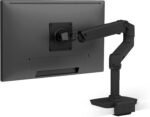
The Ergotron LX is a strong all-around choice for gamers who want smooth adjustment, dependable construction, and a clean professional appearance. It offers a wide range of movement, making it easy to pull a display forward for focused play and move it back when more desk space is needed.
Its polished aluminum design suits both gaming and home-office environments. Integrated cable routing helps keep power and display cables controlled as the screen moves. The arm is also available in different configurations and finishes, so buyers should pay close attention to the exact SKU and its published capacity.
 Why we like it
- Smooth height, depth, tilt, and side-to-side adjustment
- Established design suited to frequent repositioning
- Clean cable-management channels
- Clamp and grommet installation options on compatible versions
- Versatile appearance that works beyond a gaming room
Potential drawbacks
- More expensive than many entry-level arms
- Capacity differs among LX versions and retailer listings
- Very large or heavy ultrawides may require a heavy-duty model instead
Best for: Gamers who want a refined, highly adjustable arm for a conventional single-monitor setup.
2. Secretlab MAGNUS Heavy Duty Monitor Arm — Best for Heavy Ultrawides
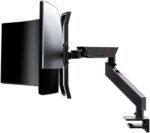
Large curved displays place greater leverage on a mounting arm than smaller flat monitors. The Secretlab MAGNUS Heavy Duty Monitor Arm is designed for this demanding use case. Its published compatibility covers 34- to 57-inch screens weighing between 17.6 and 35.2 pounds.
The arm provides up to 530 mm of forward reach and a 265 mm adjustment range. Its tilt, swivel, and rotation controls make it possible to fine-tune a large display after installation. A top-mounted clamp design can also simplify installation when access behind the desk is limited.
The lower end of the weight range is important. A monitor that is too light may not balance correctly, even though it is below the maximum capacity. Measure the desk as well: Secretlab specifies a compatible desktop thickness of 10–50 mm for the clamp.
 Why we like it
- Designed specifically for large, heavy gaming monitors
- Supports common 75 × 75 mm and 100 × 100 mm VESA patterns
- Substantial reach for deep gaming desks
- Top-mounted clamp installation
- Integrated cable management for a cleaner setup
Potential drawbacks
- Not intended for lightweight displays below its minimum load
- Premium price
- The clamp is limited to compatible desk thicknesses
Best for: Owners of heavy curved ultrawide or super-ultrawide gaming monitors.
View the Amazon.com: Secretlab Magnus Monitor Arm (Heavy Duty Edition) – for Ultrawide Monitors | Up to 57 inches, 18 to 35lbs – Includes Heavy Duty Tilt Pivot : ElectronicsSecretlab MAGNUS Heavy Duty Monitor Arm
3. HUANUO DS7 Dual Monitor Arm — Best for Dual Gaming Monitors
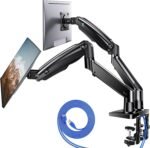
A dual-arm mount can help place a primary gaming monitor directly ahead while keeping chat, streaming controls, guides, or system monitoring visible on a second screen. The HUANUO DS7 supports two displays from 13 to 40 inches, with a published capacity of 4.4–26.4 pounds per arm.
Each arm adjusts independently, so users can align two matching monitors or combine screens with different sizes. The arms can raise displays up to 21.65 inches and support tilt, swivel, and rotation. Both C-clamp and grommet mounting hardware are included, giving buyers more flexibility when matching the stand to a desk.
Dual setups require more careful planning than single-screen installations. Confirm that both monitors fall within the arm’s individual weight range, and leave enough clearance behind the desk for the elbows of the arms to move.
 Why we like it
- Independent positioning for two monitors
- Broad 13- to 40-inch compatibility
- Up to 26.4 pounds of capacity per arm
- Clamp and grommet mounting choices
- Useful for gaming, streaming, and multitasking
Potential drawbacks
- Two large displays can create considerable force at the desk edge
- Perfectly aligning mismatched monitors may take time
- Requires more space behind the desk than a fixed stand
Best for: Gamers, streamers, and multitaskers using two compatible displays.
4. VIVO STAND-V101V — Best-Value Ultrawide Arm
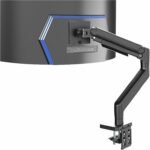
The VIVO STAND-V101V offers an unusually broad published range for its price category. It accommodates flat or curved screens from 17 to 49 inches and monitors weighing 4.4–44 pounds. That makes it worth considering for gamers whose heavy display exceeds the limits of a typical budget arm.
The arm extends up to 23 inches and can position the center of the screen up to 19.7 inches above the desktop. It includes both C-clamp and grommet hardware, while standard 75 × 75 mm and 100 × 100 mm VESA mounting patterns cover many gaming monitors.
High maximum capacity does not guarantee ideal performance with every 49-inch display. Curvature, depth, and the location of the mounting point affect leverage. Buyers with an especially deep or front-heavy monitor should confirm compatibility with VIVO rather than relying on screen size alone.
 Why we like it
- Wide 4.4–44-pound published weight range
- Supports many flat and curved ultrawide monitors
- Good forward reach
- Clamp and grommet hardware included
- Strong feature set for the price
Potential drawbacks
- The utilitarian design may not suit every gaming setup
- Large screens require careful tension adjustment
- Compatibility still depends on the monitor’s dimensions and center of gravity
Best for: Value-focused buyers mounting a compatible large or heavy ultrawide.
5. Amazon Basics Adjustable Single Monitor Arm — Best Budget Pick
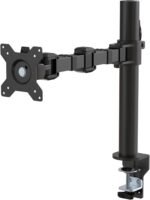
Gamers with a conventional single screen may not need an expensive heavy-duty mount. The Amazon Basics Adjustable Single Monitor Arm is a practical entry-level option with a published capacity of up to 22 pounds. Its listing indicates support for displays up to 32 inches or ultrawides up to 38 inches, depending on weight and compatibility.
Adjustable tension helps the arm balance monitors of different weights, while 75 × 75 mm and 100 × 100 mm VESA support covers many mainstream gaming displays. This model is most appealing when the goal is straightforward height and distance adjustment rather than premium materials or support for an oversized screen.
As with all marketplace products, check that the selected listing and model match the specifications described here. Amazon Basics has sold multiple monitor-arm designs, so similarly named versions may not have identical limits.
 Why we like it
- Accessible price for a first monitor arm
- Suitable for many mainstream gaming displays
- Adjustable tension
- Supports common VESA patterns
- Helps reclaim space under the monitor
Potential drawbacks
- Lower capacity than heavy-duty alternatives
- Not the best choice for large, front-heavy curved screens
- Model specifications may vary between listings
Best for: Budget-conscious gamers with a compatible single monitor.
Amazon Basics Adjustable Single Monitor Arm — Best Budget Pick
How to Choose a Gaming Monitor Arm
Match the Weight Range, Not Just the Screen Size
Screen size is only a starting point. Find the monitor’s weight without its original stand and compare it with both the minimum and maximum load published for the arm. A screen below the  minimum may drift upward, while one above the maximum may sag or overload the mechanism.
Curved ultrawides can create more torque because their weight extends farther forward from the VESA plate. If your display sits near the stated limit, ask the arm manufacturer to confirm compatibility with the exact monitor model.
Check the VESA Pattern
Most arms in this roundup support 75 × 75 mm and 100 × 100 mm mounting patterns. Look at the back of the monitor or consult its manual to verify the pattern. Some displays use a recessed mounting area or require a manufacturer-specific adapter.
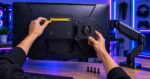 Use the correct screw length. A screw that is too short may not secure the display, while one that is too long can damage internal components.
Inspect the Desk Before Choosing a Mount
A strong arm still depends on a suitable desk. Measure the desktop thickness and check the manufacturer’s clamp or grommet requirements. Thin particleboard, hollow-core tops, glass, and desks with deep rear aprons may need special consideration.
Do not clamp an arm to glass unless both the desk and arm manufacturers explicitly permit it. For a heavy monitor, a compatible reinforcement plate may help distribute pressure, but it does not make a structurally weak desk safe.
Measure Height, Reach, and Rear Clearance
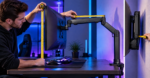 An arm must raise the display high enough without forcing it too far forward. Measure from the desk to the monitor’s VESA mounting point, then compare that measurement with the arm’s height range. Also check maximum reach if you use a deep desk.
Leave space between the desk and wall for the arm to fold. Some arms need substantial rear clearance when the screen is positioned close to the wall.
Choose Single or Dual Arms Carefully
A dual arm creates a cleaner installation and can make two screens easier to reposition. Separate single arms, however, may offer more flexible placement and spread the load across two desk locations. Two heavy monitors on one clamp can put significant stress on a small section of the desktop.
Do Not Ignore Cable Length
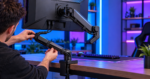 Power, HDMI, and DisplayPort cables need enough slack to move with the arm. Route cables through the provided channels without pulling them tight or sharply bending connectors. Test the arm’s full movement before closing cable covers or fastening reusable ties.
Setting Up a Monitor for Better Neck and Shoulder Comfort
Start by sitting in your normal gaming position with your back supported and shoulders relaxed. Center the primary display in front of your body rather than in front of one side of the desk. As a practical starting point, place the top of the visible screen around eye level or slightly below it, then adjust for your eyesight, screen size, and posture.
Position the display far enough away that you can read comfortably without leaning forward. About an arm’s length works as an initial reference for many people, but larger screens and different visual needs may require more distance. Increase text size instead of pulling your head toward small interface elements.
After positioning the screen:
- Adjust the arm tension according to the manufacturer’s instructions.
- Confirm that the display stays in place at different heights and angles.
- Tighten the clamp and mounting hardware to the specified level.
- Move the arm through its range while checking cables and wall clearance.
- Recheck the clamp and fasteners after several days of use.
Monitor placement is only one part of a comfortable gaming station. Keep frequently used controls within easy reach, support the forearms when appropriate, vary your posture, and take regular movement breaks. Persistent pain, numbness, weakness, or symptoms following an injury should be discussed with a qualified healthcare professional.
Safety Tips
- Never exceed the arm’s published weight capacity.
- Have another person support a large monitor during installation.
- Verify that the desk is structurally sound before tightening the mount.
- Use only compatible VESA adapters, screws, and mounting hardware.
- Do not place fingers near moving joints while adjusting a loaded arm.
- Keep cables clear of pinch points.
- Recheck the mount periodically, especially after moving the desk.
- Follow the monitor-arm and desk manufacturers’ instructions if they differ from general guidance.
Frequently Asked Questions
Can a monitor arm reduce neck and shoulder discomfort?
It may help if poor screen placement causes you to look downward, lean forward, or rotate your neck for long periods. An arm makes height, distance, and horizontal position easier to change. It is not guaranteed to relieve pain, and discomfort may also relate to the chair, desk, input devices, vision, workload, or a medical condition.
Should the top of a gaming monitor be at eye level?
That is a useful starting point for many setups, but it is not a universal rule. Very large screens, progressive lenses, or particular visual needs may call for a lower position. The aim is to view the main content with the head balanced and the eyes looking slightly downward rather than repeatedly bending the neck.
Are monitor arms safe for ultrawide screens?
Yes, when the arm is explicitly compatible with the screen’s weight, dimensions, VESA pattern, and load characteristics. Large curved screens create additional leverage, so a generous capacity margin and a strong desktop are especially important.
Is a gas-spring arm better for gaming?
A gas- or mechanical-spring arm can make frequent repositioning easier. The adjustment mechanism matters less than correct capacity, stable construction, adequate range, and compatibility with the desk and monitor.
Can I mount a monitor arm on a glass desk?
Only if the desk and monitor-arm manufacturers explicitly approve that installation. Clamping concentrated weight to unsupported or unsuitable glass can be dangerous. When approval is unclear, use the monitor’s original stand or choose a compatible alternative desk.
Final Verdict
The Ergotron LX Desk Monitor Arm is our best overall choice for a conventional single-monitor gaming setup because it combines useful adjustment with polished construction. The Secretlab MAGNUS Heavy Duty Monitor Arm is the more appropriate pick for many heavy ultrawides, while the HUANUO DS7 gives dual-screen gamers independent positioning for two monitors.
For value-focused ultrawide users, the VIVO STAND-V101V offers a broad published capacity. The Amazon Basics Adjustable Single Monitor Arm is a sensible budget option for a compatible mainstream display.
Before buying, verify the exact monitor weight, VESA pattern, desktop thickness, and mounting clearance. The best monitor arm is not simply the strongest one—it is the model that securely fits the complete gaming setup and lets the screen sit comfortably in front of you.