Working from home can be comfortable, but only when the workspace fits the person using it. A dining chair that is too low, a laptop placed flat on a desk, or a mouse positioned too far away can encourage awkward positions for hours at a time. The result may be tired shoulders, a stiff neck, wrist discomfort, or a tendency to slouch as the day progresses.
The good news is that you do not always need to replace your entire desk and chair. Carefully selected ergonomic accessories can correct specific fit problems and make an existing home office easier to adjust. The best products do not force the body into one supposedly “perfect” posture. Instead, they help place the screen, keyboard, mouse, and feet within a comfortable range while making it easier to change position.
OSHA recommends treating a computer workstation as a complete system and looking for improvements in posture, component placement, and the work environment. Its guidance emphasizes a custom fit rather than a universal setup. genui{“citation”:{“ref”:”turn14search1″}}
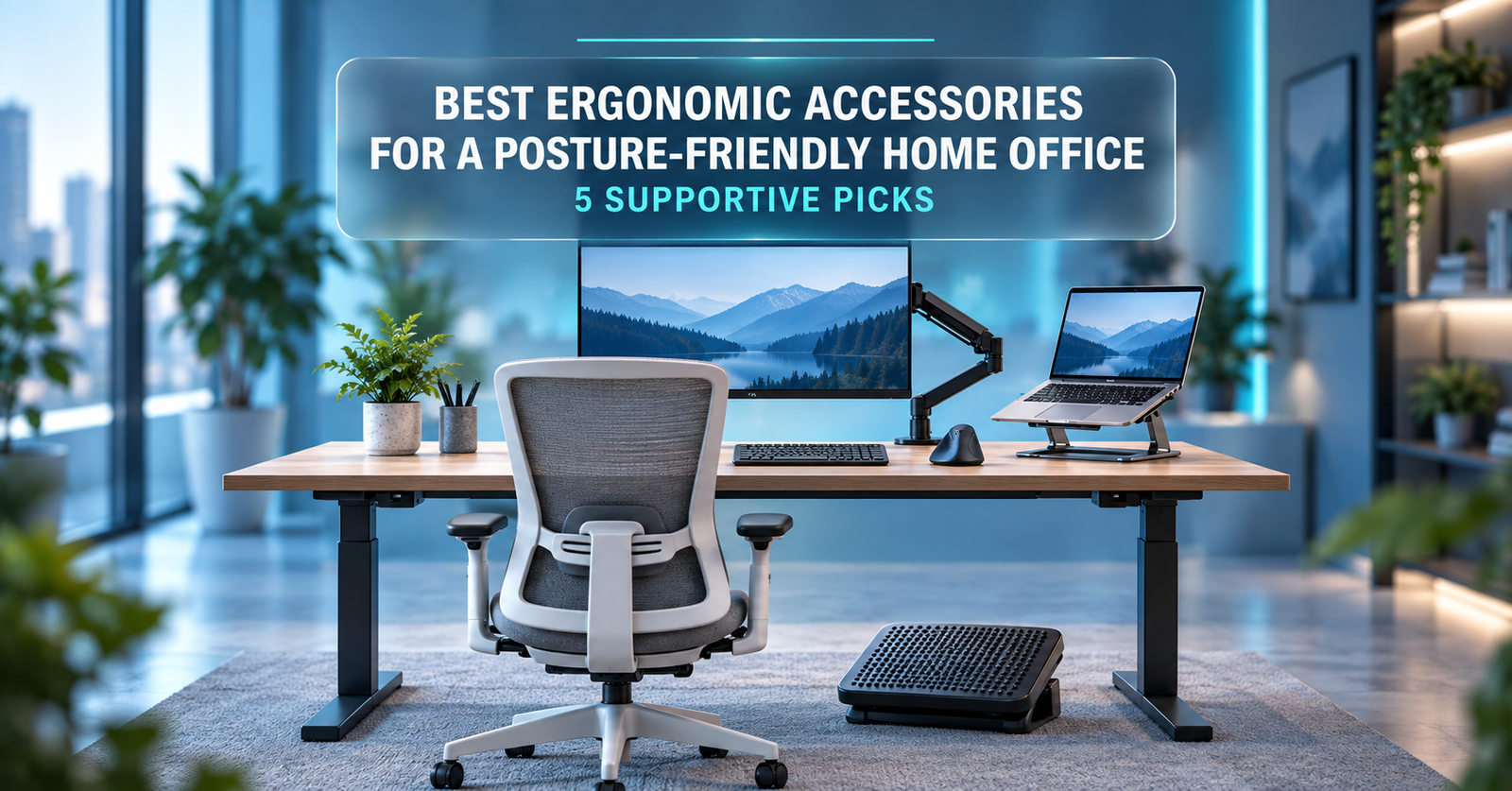
Below are five useful ergonomic accessories for building a more posture-friendly home office.
Quick Comparison
Table of Contents
| Pick | Accessory | Best for | Main consideration |
|---|---|---|---|
| 1 | HUANUO Single Monitor Mount | Raising and repositioning a desktop monitor | Check screen weight, VESA pattern, and desk compatibility |
| 2 | Logitech Lift Vertical Ergonomic Mouse | Reducing forearm rotation during mouse use | Best suited to small or medium hands |
| 3 | Fellowes Breyta Foot Rest | Supporting feet when the chair must be raised | Choose the correct height and keep it stable |
| 4 | 3M AKT80LE Keyboard Tray | Bringing the keyboard and mouse closer | Requires sufficient mounting space beneath the desk |
| 5 | Roost V3 Laptop Stand | Raising a laptop screen for mobile work | Requires a separate keyboard and mouse for long sessions |
1. HUANUO Single Monitor Mount — Best for Flexible Screen Positioning
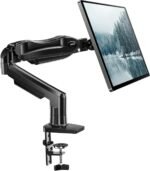
A monitor arm can be one of the most useful upgrades for a fixed home-office desk. It allows the user to move the screen vertically, adjust its viewing distance, and reclaim some desktop space. This can be especially helpful when the original monitor stand does not rise high enough or takes up too much room.
The HUANUO single monitor mount is designed for 13- to 32-inch screens and uses a gas-spring mechanism. The manufacturer says the spring has been tested through 20,000 movement cycles. genui{“citation”:{“ref”:”turn13search12″}} That adjustability is useful for shared workstations or for people who alternate between focused computer work and other desk tasks.
 Why it stands out
- Gas-spring adjustment makes it easier to reposition the screen.
- The arm can free space beneath the monitor.
- It offers more placement flexibility than many factory stands.
- It can help center a screen that would otherwise sit too low or too far away.
What to check before buying
Do not shop by screen size alone. Find the monitor’s weight without its original stand and compare it with the arm’s published minimum and maximum load. Confirm the VESA mounting pattern, desktop thickness, clamp clearance, and the amount of space behind the desk. A deep arm may strike a wall if the desk sits very close to it.
The screen should be positioned so that it can be viewed without repeatedly tipping the head up or down. The correct height depends on the user, monitor size, eyewear, and viewing distance, so adjust it while sitting naturally rather than copying a fixed measurement from a photograph.
Best for: Desktop-monitor users who need more height, reach, or viewing-angle flexibility.
Skip it if: Your monitor has no compatible mounting points or your desk cannot safely accept the clamp or grommet base.
Amazon.com: HUANUO FlowLift™ Single Monitor Mount, 13 to 32 Inch Monitor Arm, Adjustable Monitor Stand, Vesa Mount with Clamp and Grommet Base – Fits 4.4 to 19.8lbs LCD Computer Monitors : Electronics
2. Logitech Lift Vertical Ergonomic Mouse — Best for Small to Medium Hands
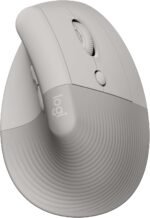
A conventional flat mouse keeps the forearm rotated toward the desk. Some users find a vertical mouse more comfortable because it supports a handshake-style position. The Logitech Lift uses a 57-degree angle and includes a shaped thumb rest. Logitech offers right- and left-handed versions, while the standard Lift shape is intended primarily for small to medium hands. genui{“citation”:{“ref”:”turn13search1″}}
The mouse can connect through Bluetooth Low Energy or the included Logi Bolt receiver. It supports up to three devices, has adjustable tracking up to 4,000 DPI, and is rated for up to 24 months of battery life under Logitech’s stated testing conditions. genui{“citation”:{“ref”:”turn13search2″}}
 Why it stands out
- The vertical shape may feel more natural for users who dislike a flat mouse.
- Quiet clicks suit shared rooms and video calls.
- Multi-device switching is convenient for a work computer and personal laptop.
- The smaller body is easier to manage than many oversized vertical mice.
What to check before buying
Hand size matters more than marketing language. A mouse that is too large can make the fingers reach; one that is too small may offer poor palm support. Also consider whether the desk provides enough room to move the mouse from the shoulder instead of making repeated small movements only at the wrist.
A vertical mouse may take several days to feel familiar. Start with short sessions, keep the pointer speed comfortable, and place the mouse close to the keyboard. Stop using it if it creates new discomfort.
Best for: Small- to medium-handed users who want a more upright forearm position.
Skip it if: You have very large hands or need a highly specialized gaming sensor and button layout.
Amazon.com: Logitech Lift Vertical Ergonomic Wireless Mouse – Sand | Connect via Bluetooth or included Logi Bolt USB-A receiver, quiet clicks, 4 of 6 buttons customizable, Windows Mac compatible : Electronics
3. Fellowes Breyta Foot Rest — Best for Shorter Users and Fixed-Height Desks
The chair often needs to be raised so the elbows align comfortably with a fixed-height desk. When that adjustment leaves the feet dangling or barely touching the floor, a footrest can fill the gap.
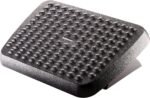
The Fellowes Breyta foot rest offers three height settings and an optional rocking position. It is designed to be portable and easy to adjust. genui{“citation”:{“ref”:”turn13search32″}} The rocking function also lets the ankles move instead of remaining fixed throughout the workday.
 Why it stands out
- Three height positions make it easier to match different chairs and desks.
- The rocking option encourages small movements.
- A portable design works well in multipurpose rooms.
- It provides a defined surface for both feet.
What to check before buying
Measure the vertical gap between the user’s feet and the floor after the chair has been adjusted for the desk. The platform should support the feet without pushing the knees unusually high or creating pressure under the thighs. It should also remain stable on the room’s flooring.
A footrest is not automatically necessary. If both feet already rest comfortably on the floor and the knees and hips feel well supported, adding a tall platform may make the setup worse. Fellowes notes that a footrest works as part of a broader setup that also includes a properly adjusted chair and monitor. genui{“citation”:{“ref”:”turn13search31″}}
Best for: Users whose feet do not rest securely on the floor after their chair is raised to the correct desk height.
Skip it if: Your feet are already fully supported and your chair-to-desk relationship is comfortable.
Amazon.com: Fellowes 48121 Standard Foot Rest, Graphite : Office Products
4. 3M AKT80LE Keyboard Tray — Best for High Desks
If a desk is too high, raising the chair may help the arms but create problems for the feet. An adjustable keyboard tray takes the opposite approach: it lowers the keyboard and mouse toward the user.
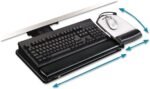
The 3M AKT80LE uses a knob-adjust mechanism and provides height adjustment from 1.25 inches above to 4.5 inches below the mounting surface. It also tilts 15 degrees in either direction, swivels, and stores beneath the desk. The mouse platform can be positioned for right- or left-handed use. genui{“citation”:{“ref”:”turn14search8″}}
 Why it stands out
- It places the keyboard and mouse on the same adjustable surface.
- Height and tilt can be tuned to the user.
- The tray stores beneath the desk when it is not required.
- It supports left- or right-side mouse placement.
What to check before buying
Measure beneath the desk before ordering. The AKT80LE requires mounting space, and crossbars, drawers, sit-stand mechanisms, or a shallow desktop may prevent installation. The desk must also be stable enough to support the tray in use; 3M’s installation guidance specifically calls for a stable work surface. genui{“citation”:{“ref”:”turn14search0″}}
Keep the elbows near the body and the wrists in a comfortable, mostly straight position. Avoid tilting the tray merely because it can tilt; adjust it in response to the user’s posture and keyboard shape.
Best for: People working at fixed desks that place the keyboard and mouse too high.
Skip it if: The underside of your desk lacks enough clear mounting depth or contains structural hardware.
5. Roost V3 Laptop Stand — Best for Portable Workstations
Laptop design creates an ergonomic compromise because the screen and keyboard are permanently connected. Raising the screen also raises the keyboard, while keeping the keyboard low forces the user to look downward. A portable laptop stand solves the screen-height half of that problem.
The Roost V3 is a lightweight, collapsible stand designed for mobile work. It is a good match for people who work in several rooms, travel frequently, or need an accessory that can be stored quickly after the workday.
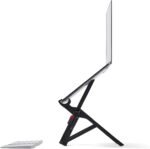 Why it stands out
- Portable construction suits hybrid and travel setups.
- Height adjustment can bring the laptop display closer to a comfortable viewing level.
- The open design leaves room around the laptop.
- It folds down more easily than a full-size desktop riser.
What to check before buying
Confirm that your laptop’s thickness and lower bezel fit securely in the stand’s grips. Check stability while typing only for brief adjustments—not as the primary input method. For extended sessions, use a separate keyboard and mouse positioned close to the body. An OSHA-derived workstation checklist similarly recommends applying desktop ergonomic principles to laptops used as primary computers and providing separate input devices. genui{“citation”:{“ref”:”turn14search9″}}
Best for: Laptop users who want an adjustable screen position at home and while traveling.
Skip it if: You are unwilling to use a separate keyboard and mouse during longer work sessions.
Amazon.com: Roost V3 Laptop Stand – Adjustable and Extremely Portable Laptop Stand – PC and MacBook Stand : Electronics
How to Choose Ergonomic Home-Office Accessories
Start With the Problem, Not the Product
Observe where the setup stops fitting you. Is the screen too low? Are the feet unsupported? Does the desk force the shoulders upward? Is the mouse too far away? Choose the accessory that addresses that specific mismatch.
Check Measurements and Compatibility
Product dimensions matter. Measure monitor weight, VESA spacing, desk thickness, under-desk clearance, hand size, and the foot-to-floor gap where relevant. A highly adjustable accessory is still a poor purchase if it does not fit the workstation.
Preserve Neutral, Comfortable Positions
 OSHA’s guidance describes neutral positioning as keeping the head balanced, shoulders relaxed, elbows close to the body, wrists generally straight, the back supported, and the feet supported by the floor or a footrest. It also recommends changing position frequently rather than remaining still all day. genui{“citation”:{“ref”:”turn14search15″}}
Prioritize Adjustability and Stability
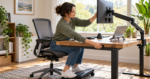 An accessory should stay where it is placed. Monitor arms should not sag, laptop stands should not wobble, and footrests should not slide across the floor. Adjustment controls should be accessible without requiring excessive force.
Add One Accessory at a Time
Changing everything simultaneously makes it difficult to identify what helped. Start with the largest mismatch, use the accessory for several workdays, and then fine-tune the surrounding equipment.
Setting Up a More Posture-Friendly Home Office
- Adjust the chair so the shoulders can remain relaxed while using the keyboard.
- Support the feet on the floor or add a correctly sized footrest.
- Bring the keyboard and mouse close enough that the elbows remain near the body.
- Center the primary screen and adjust its height and viewing distance.
- Place frequently used items within easy reach.
- Change position and take short movement breaks throughout the day.
Even an excellent setup cannot make prolonged stillness ideal. Small posture changes, standing during suitable tasks, and brief walking breaks are important parts of a comfortable routine. A NIOSH workstation checklist includes adequate rest breaks among the factors to review. genui{“citation”:{“ref”:”turn14search17″}}
Frequently Asked Questions
Can ergonomic accessories improve posture?
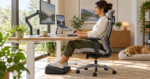 They can make comfortable positions easier to maintain by improving equipment placement and support. They do not automatically correct posture, and they cannot compensate for an unsuitable chair, an excessively high desk, or hours without movement.
Which ergonomic accessory should I buy first?
Choose the item that solves the clearest problem. A low screen suggests a monitor arm or laptop stand; unsupported feet suggest a footrest; a high keyboard may call for a tray; and wrist or forearm discomfort during mouse use may justify trying a correctly sized ergonomic mouse.
Is a laptop stand enough for long work sessions?
 Usually not on its own. Once the laptop is raised, its built-in keyboard becomes too high and far away for comfortable extended typing. Pair the stand with a separate keyboard and mouse.
Do I need both a monitor arm and a laptop stand?
Not necessarily. A monitor arm is designed for a compatible external display, while a laptop stand raises a notebook computer. A dual-screen workstation may benefit from both, but a single-screen setup generally needs only the accessory that matches its display.
Can accessories treat back or neck pain?
 Ergonomic products are not medical treatment. They may help remove workstation-related aggravations, but persistent pain, numbness, weakness, headaches, or symptoms following an injury should be discussed with a qualified healthcare professional.
Final Verdict
The best ergonomic accessories for a posture-friendly home office are the ones that correct measurable fit problems. The HUANUO monitor arm is a practical choice for flexible screen placement, while the Logitech Lift offers a compact vertical-mouse design for small to medium hands. The Fellowes Breyta foot rest can support users whose feet do not reach the floor comfortably, and the 3M AKT80LE helps address keyboards positioned too high. For laptop users, the Roost V3 creates a more adjustable screen position when paired with separate input devices.
Build the workstation around your body, not around a product photo. Measure first, adjust carefully, and remember that movement remains essential—even in a well-designed home office.